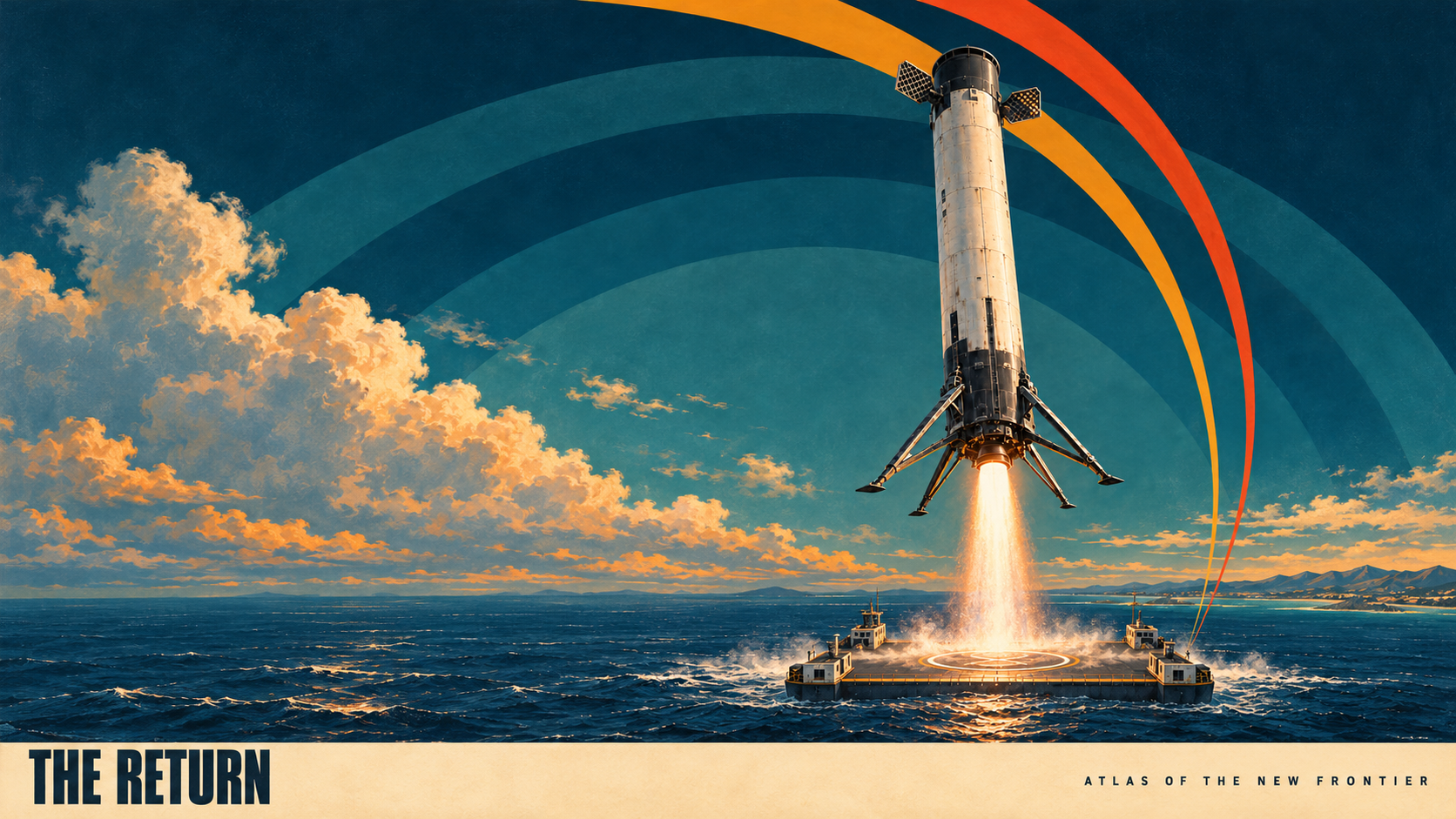
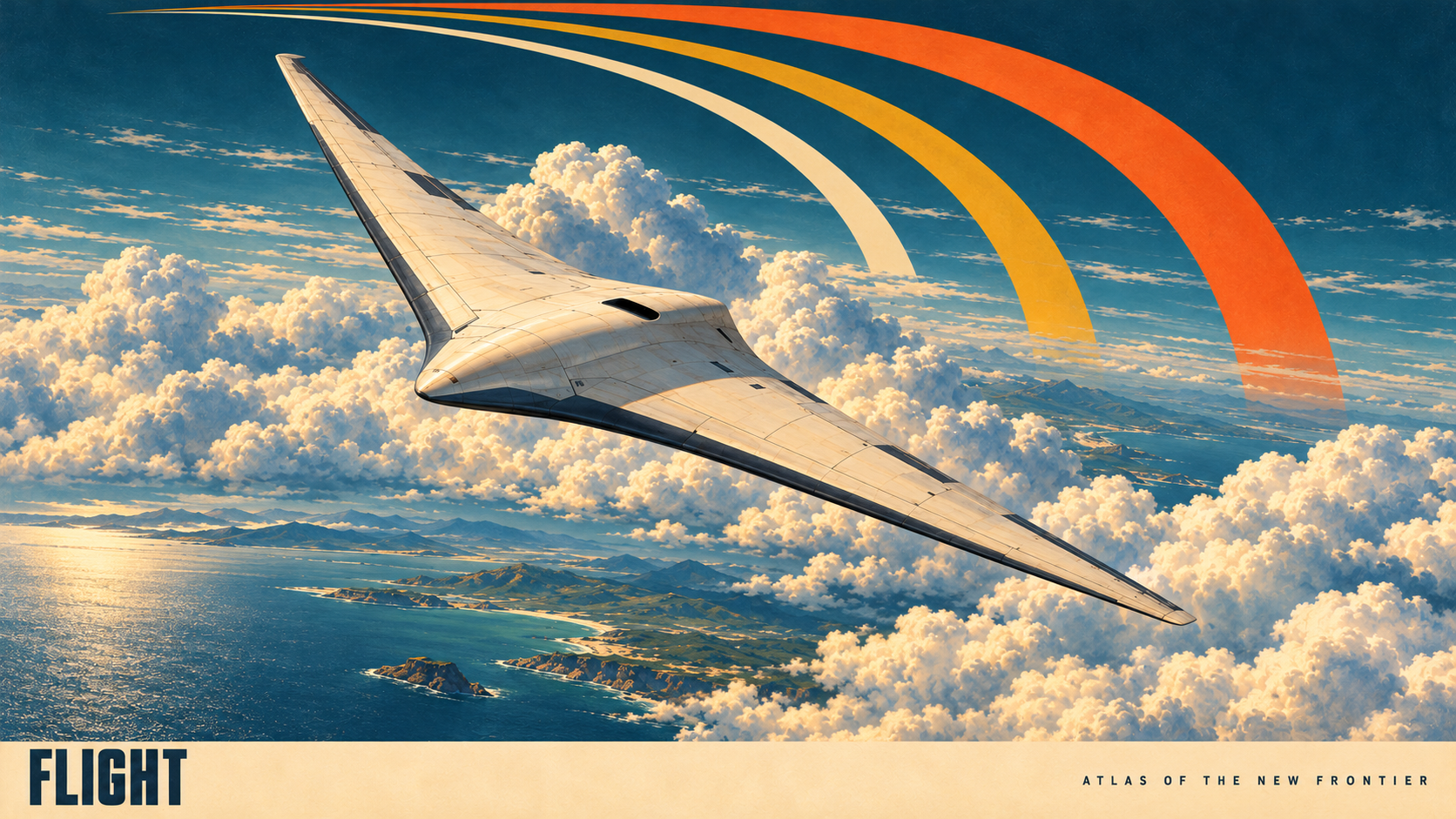
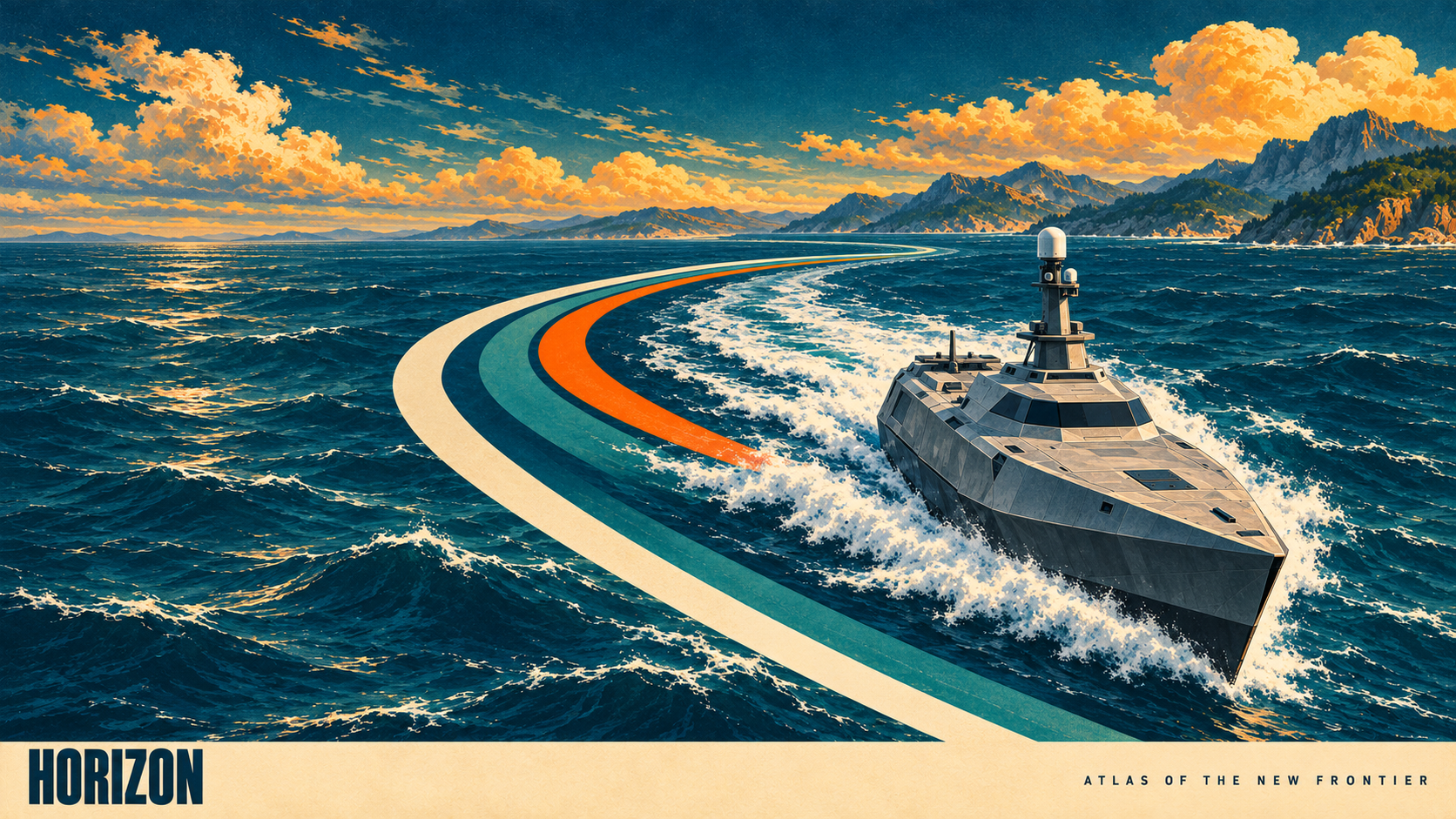
Three landscape artworks for your Mac. Set them up once; new editions can arrive automatically.
Download the free Mac edition ↓
In the folder picker, press Shift–Command–G and paste this path:
~/Pictures/The Future in Print/Posters
Your Mac’s existing idle timer decides when the screensaver starts. Setup leaves your password, lock and sleep settings unchanged.
If enabled, your Mac checks at login and about once a day while you’re logged in. The helper downloads artwork only. Offline? Your existing images stay available. New art may need a screensaver restart to appear.
To stop, double-click Disable Automatic Updates.command in Pictures → The Future in Print. Your downloaded art stays there.
You can skip the helper. Keep the unzipped folder somewhere permanent and choose its Posters folder in Photos screensaver settings. Or open the browser gallery and select Start display.
The helper is a pilot script, not a signed Mac app. macOS may ask you to approve opening it. If it is blocked, use the folder method above; no security settings need changing. No Python, paid app, account or subscription is required.
Screen previews, approximately 16:9. Personal screen use for this pilot. Print purchasing is not open yet.